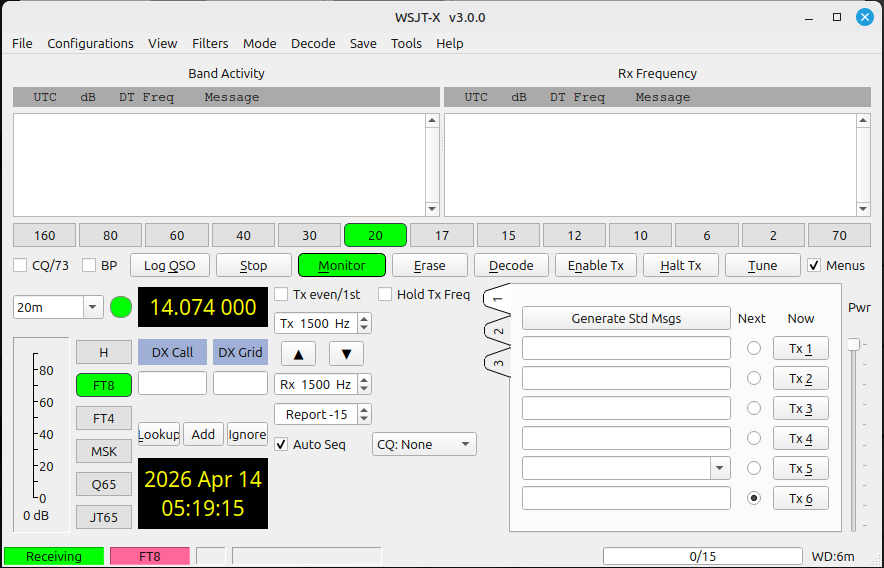
Google WSJTX.
Based on the results, choosing the first result seems like the best choice.

Scroll down to the Installation Packages.
It has a Debian, Ubuntu (and by extension Mint) download.
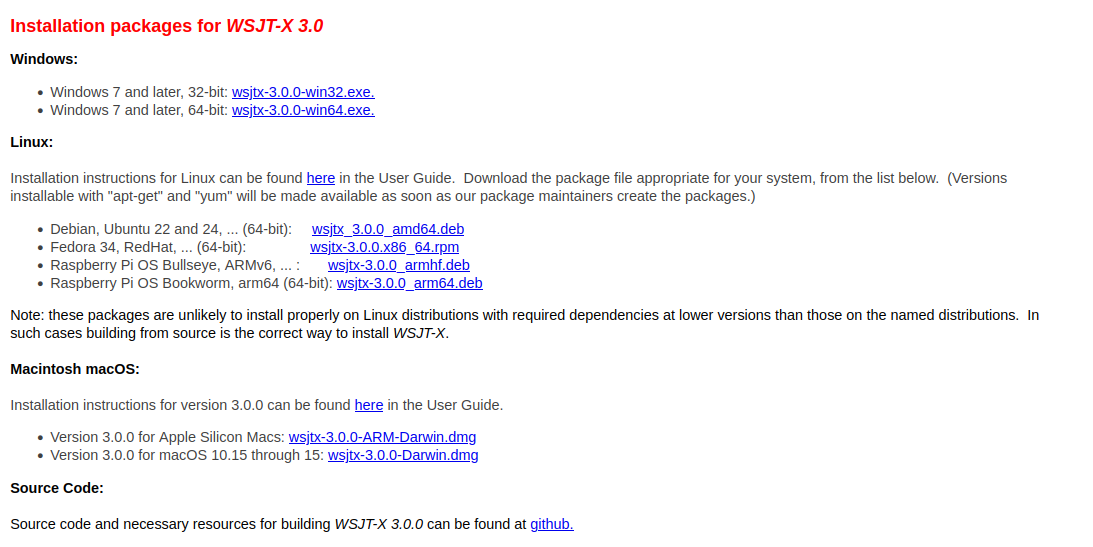
Click on the wsjt_3.0.0_amd64.deb
It will take you to the sourceforge.net website.
After a few seconds, the download will begin automatically.
Click on the wsjt_3.0.0_amd64.deb in the upper right corner.
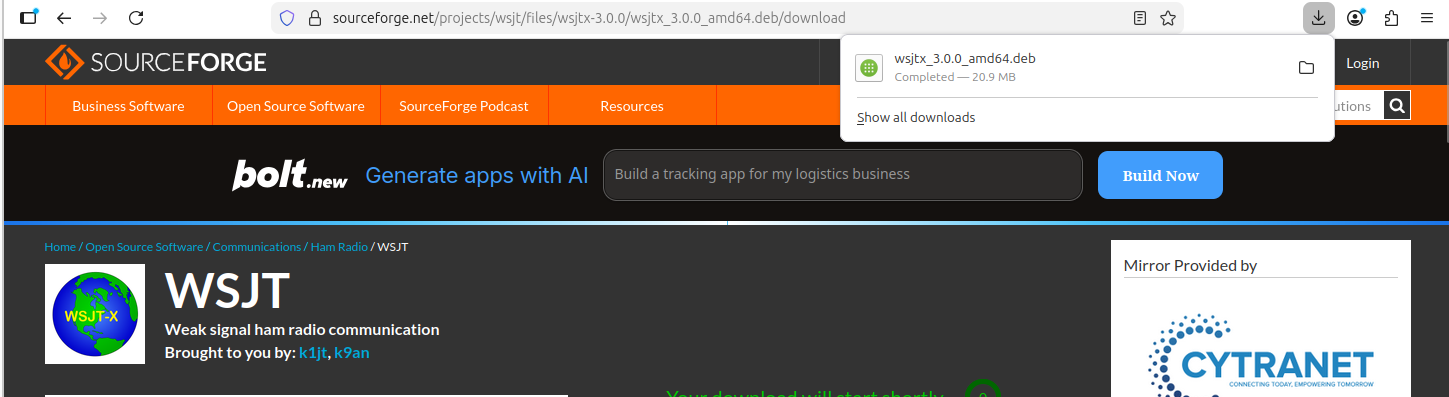
This will prepare to install the .deb package.
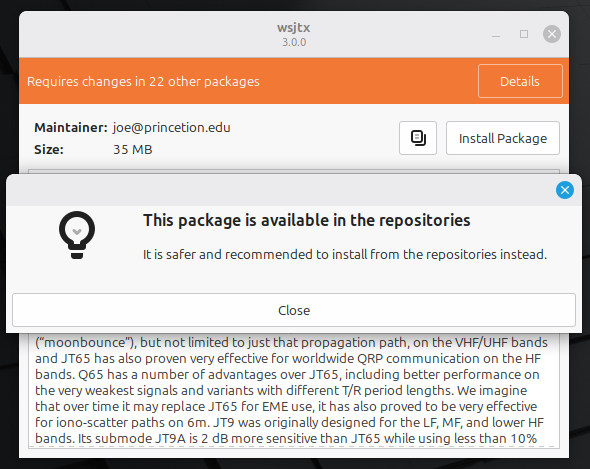
It will warn you if there is a version of this software in the Mint software repository.
Compare software versions between the .deb you just downloaded with what is in the Mint repository.
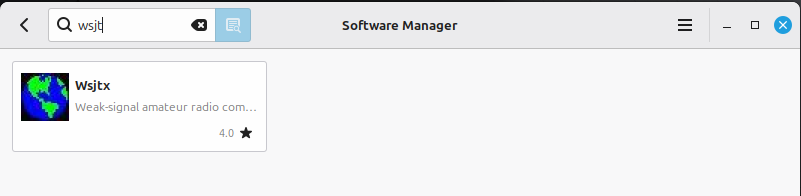
Enter the software menu, and search for wsjtx.
Click on it for the package details.
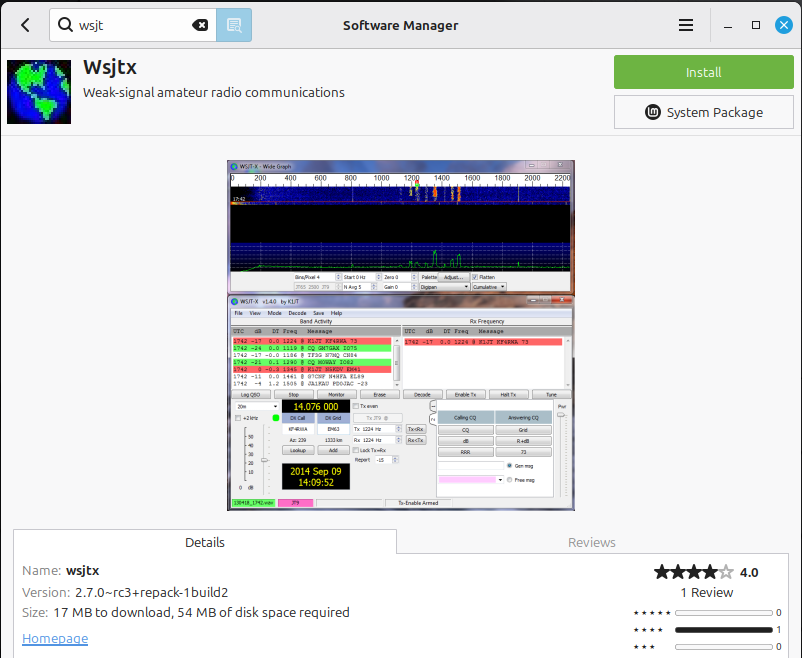
On the bottom left, you can see that this is version 2.7.0-rc3+repack-1build2.
rc3 indicates that this package is a “release candidate.” ( beta version )
You can choose between loading 2.7.0-rc3 or the version 3.0.0 from the author’s website.
Linux is about choice!
You can either:To install this version (2.7.0)
- Install this version (2.7.0)
- Click “Install” here to install version 2.7.0.
- The Software Manager will also download any dependencies necessary to install wxjtx.
- The installation is complete. You can run wsjtx by clicking the Mint Menu and type wsjtx
- Install version 3.0.0 from the author’s website by
or you can continue down the page to install version 3.0.0
On the bottom left, you can see that this is version 2.7.0-rc3+repack-1build2.
rc3 indicates that this package is a “release candidate.” ( beta version )
You can choose between loading 2.7.0-rc3 or the version 3.0.0 from the author’s website.
Linux is about choice!
You can either:To install this version (2.7.0)
- Install this version (2.7.0)
- Click “Install” here to install version 2.7.0.
- The Software Manager will also download any dependencies necessary to install wxjtx.
- The installation is complete. You can run wsjtx by clicking the Mint Menu and type wsjtx
- Install version 3.0.0 from the author’s website by
or you can continue down the page to install version 3.0.0
Linux is about choice!
You may either:
Install version 2.7.0-rc3 from the Mint source
Click Install
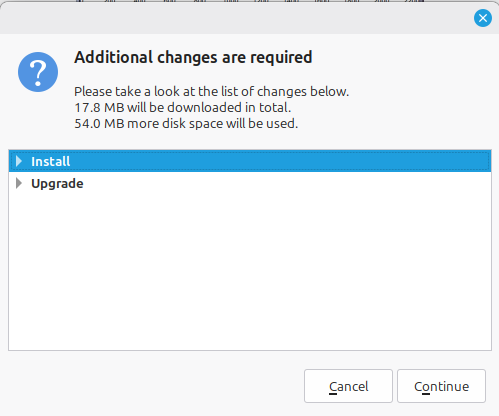
The Software Manager will install the necessary dependencies.
Choose “Install”
Click “Continue”
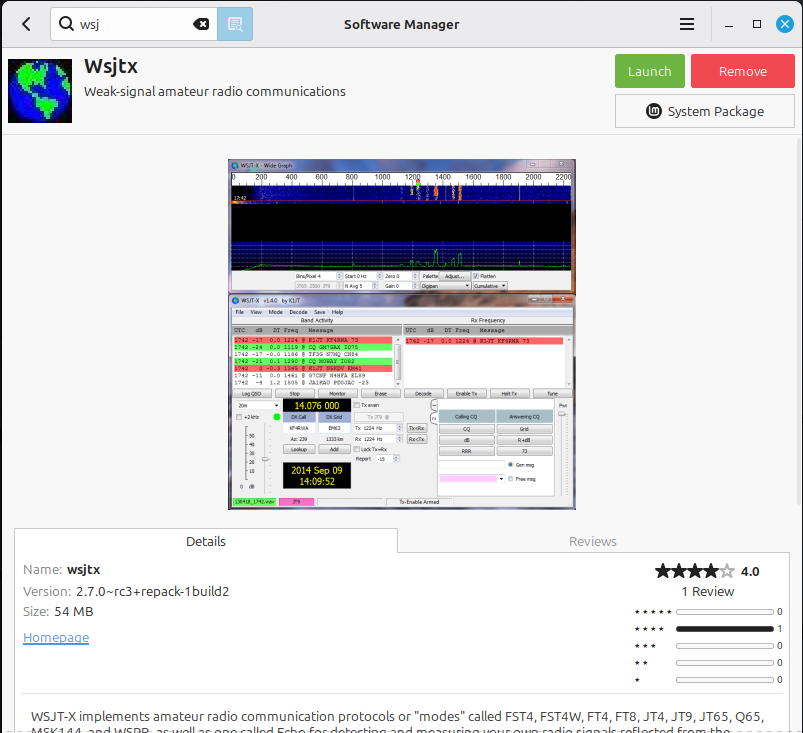
Success!
You may press “Launch” to start wsjtx
Install version 3.0.0 from the author’s website
Close the Software Manager by clicking “X” in the upper right corner of the window
Click on “Close” to close this message.
Click on “Install Package” to install version 3.0.0.
The package will install, along with any dependencies that it needs.
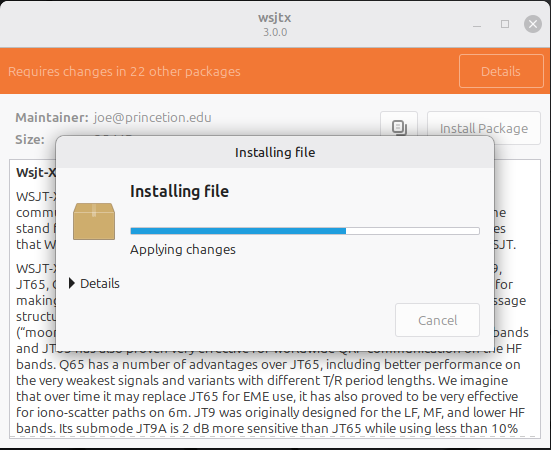
Success!
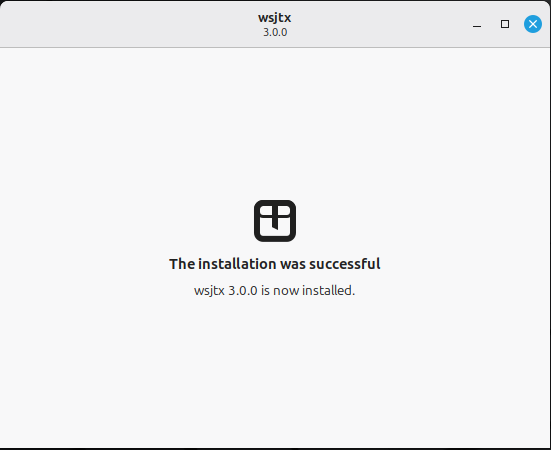
Installation Complete
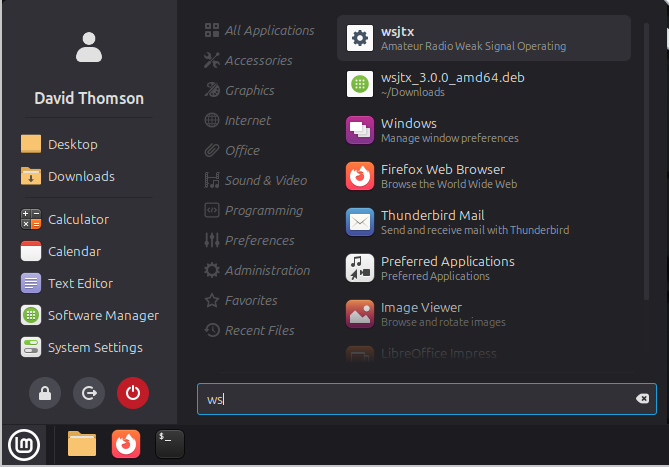
wsjtx is now available on your computer by tapping the Mint Menu (bottom left of the screen) and typing a portion of the package name ( ws ).
Leave a Reply