
Do this after you install Mint and then occasionally to update to the latest software and security fixes.
This can be done in one of two very easy ways:
By using the Graphical User Interface (GUI):
On your Mint desktop, press the “Linux Mint Menu” (just Menu from now on)
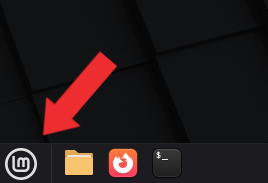
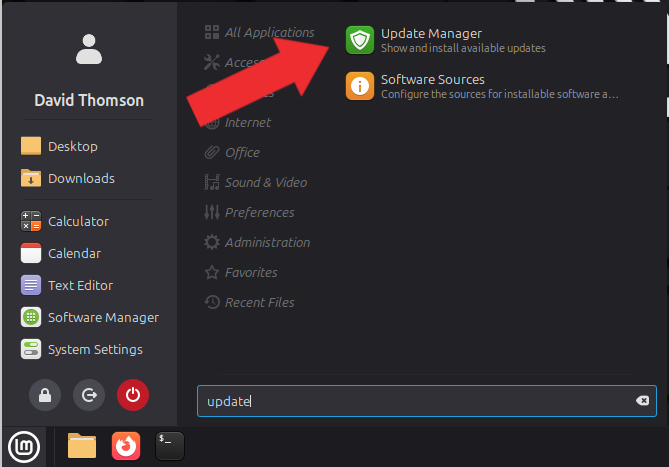
At the Menu, you can type a part of the name of the program you are looking you.
In this case type “update” to get to the Update Manager
Click on the “Update Manager”
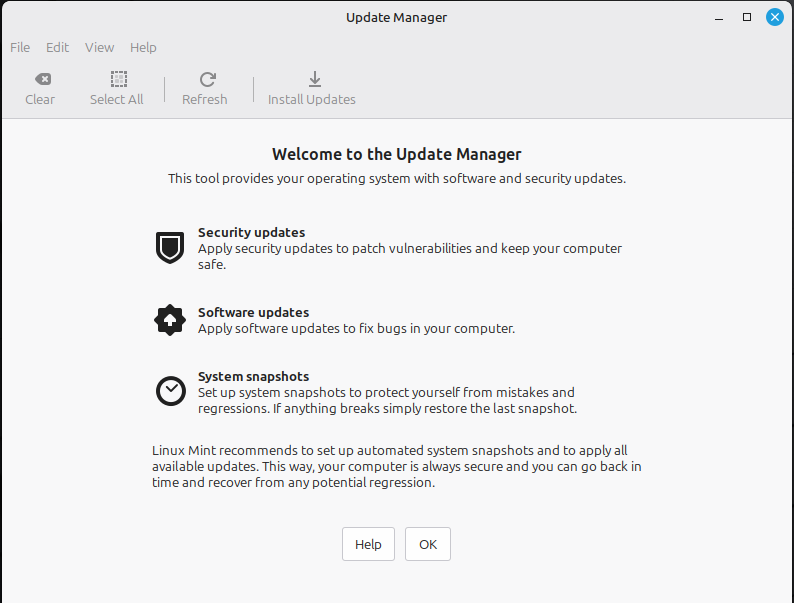
You will get this welcome screen the first time you run the Update Manager
Click on “OK”
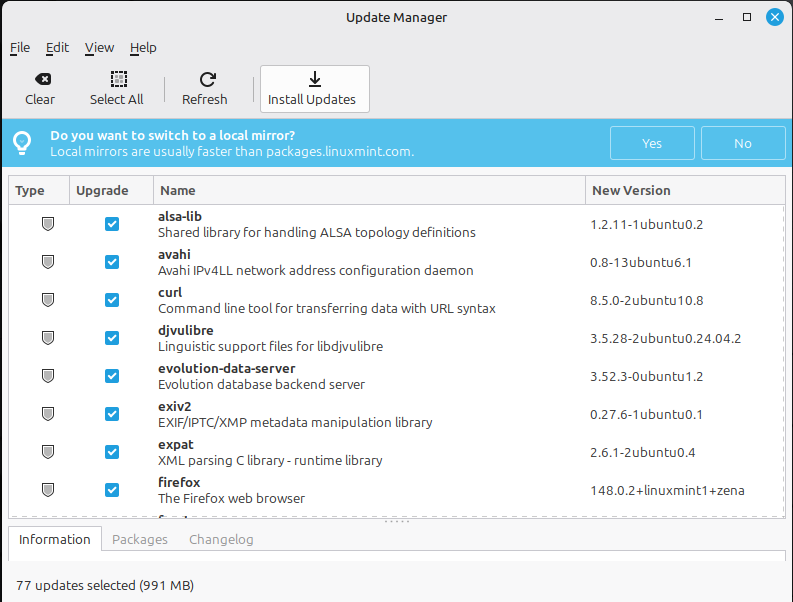
The Update Manager will list all of the packages that have updates available
You can see that all of the packages that may be updated have a check-mark in the “Upgrade” column by default.
Click on “Install Updates”
It will now download and install all of the packages that were selected.
Depending on the speed of your internet connection, this may take several minutes.
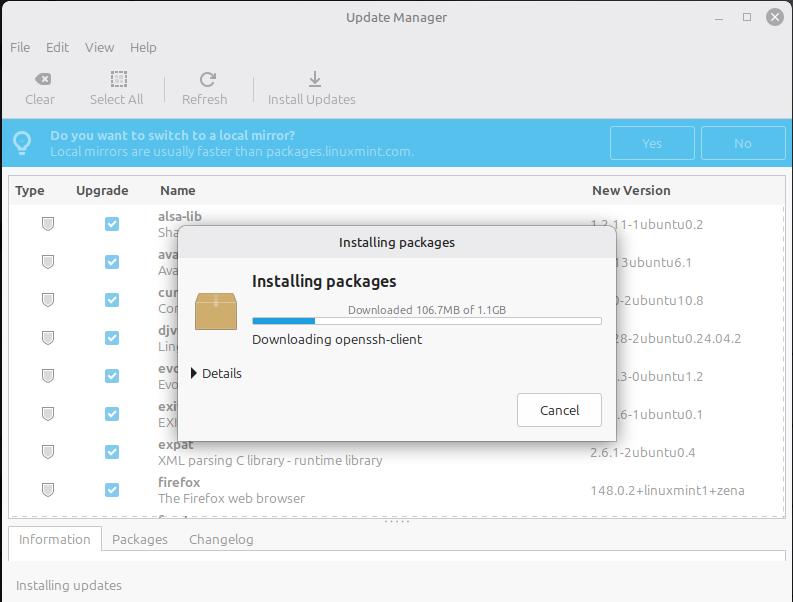
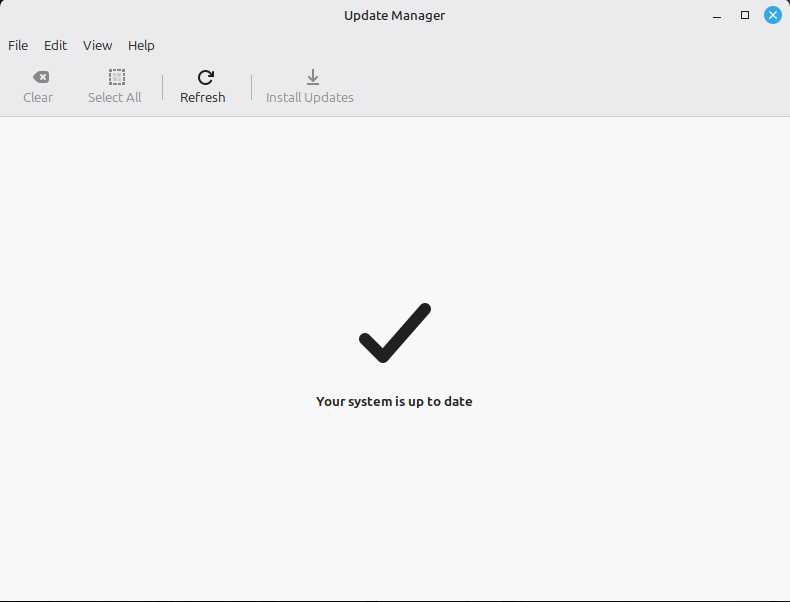
Good News.
The system is now updated
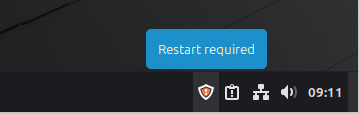
Depending on the type of update (particularly if it updating the kernel), your system may need to be rebooted.
Or by using the Command Line Interface (CLI):
Updates are done using the command “apt”
Since this a system-wide (privileged) command, you will need to run this as the system “super user”
To run a command as the super user, preface commands with “sudo” which means “Super User Do”
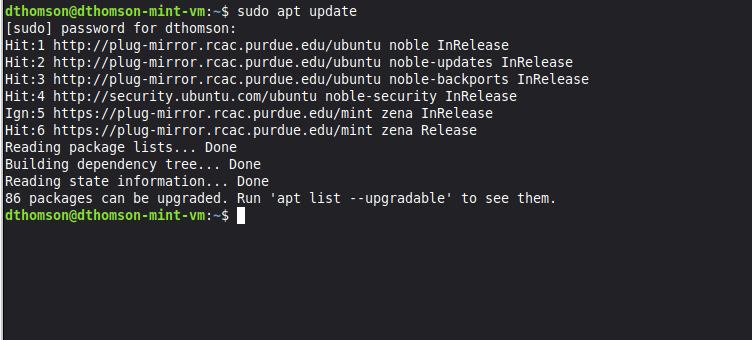
Update the list of packages that may be updated by using the command: apt update
sudo apt update
To actually upgrade the packages use one of the two commands:
sudo apt upgrade
This will update the system. This is a safe update, often used for production systems.
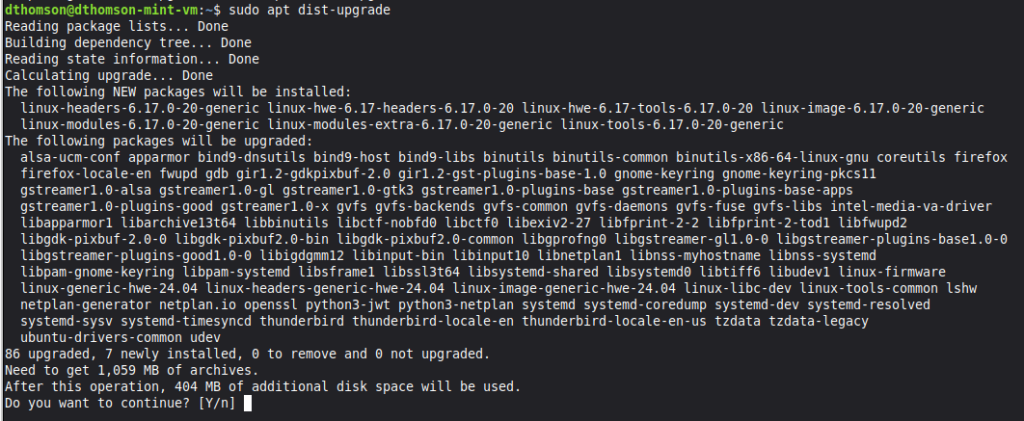
sudo apt dist-upgrade
This will upgrade the system including the kernel.
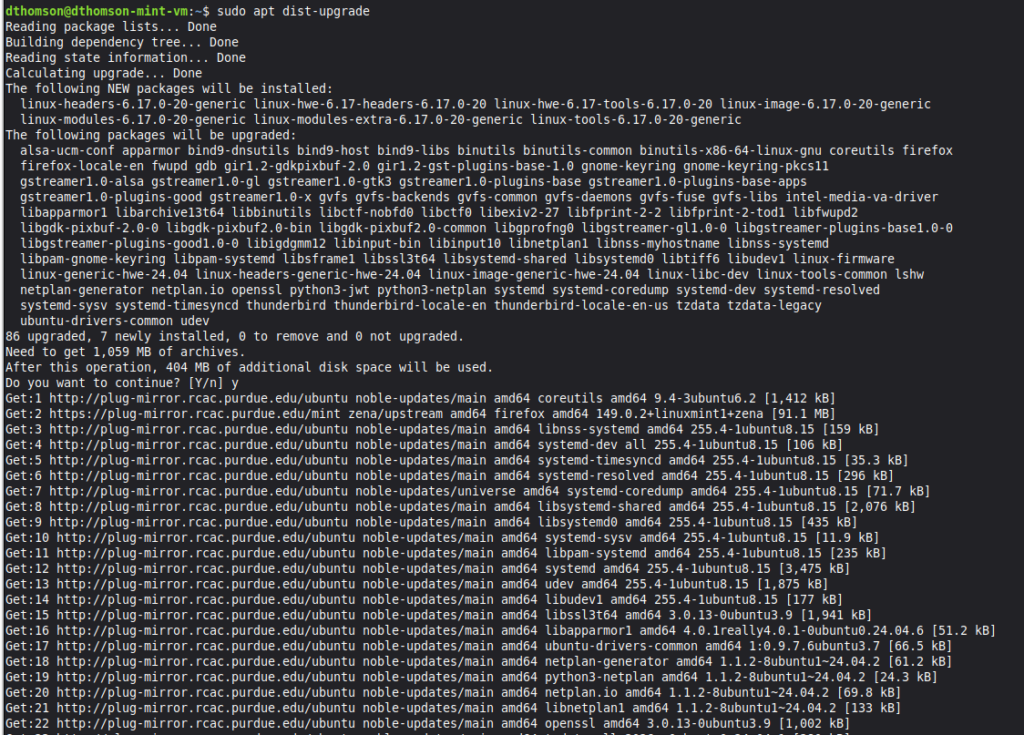
It downloads the packages.
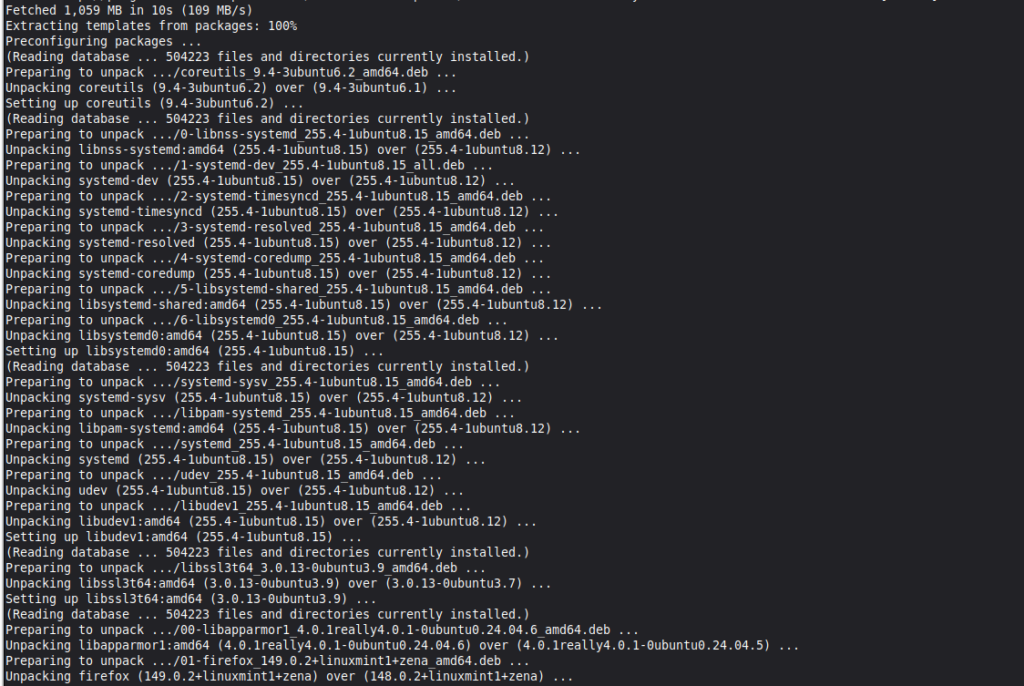
It then installs and configures the updates.
Your system is now up to date